How do I Sign in or Link My Device to My Premium Subscription on iOS?
Published Jan 31, 2019 · Updated Aug 13, 2026
To sign in or link a new device to your account, it's really easy from your iOS device. Keep in mind you can link up to 10 devices for every Premium Subscription.
To link your device:
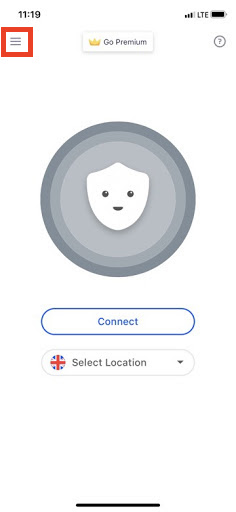
Open the Betternet App
Click on the Sandwich Icon
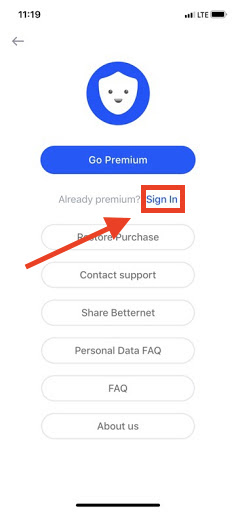
Click "Sign in"
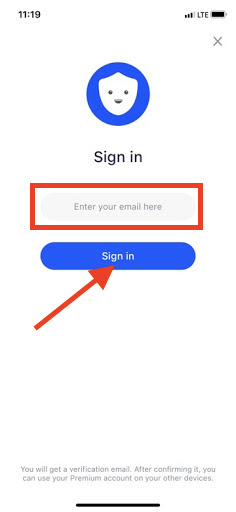
Enter your email address and click "Sign In."
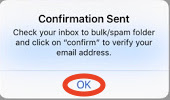
You may get another message telling you to open your email
Click "OK"
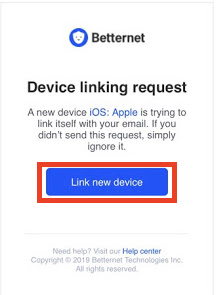
Open the Email Titled "Betternet: Sign in request received"
Click on "Link new device"
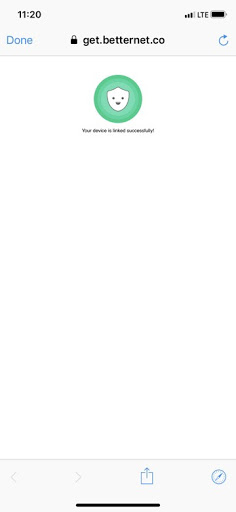
You should then get a message saying "Your device is linked successfully!"
Next, open your Betternet App. It should now show your email address and say "Betternet Premium"
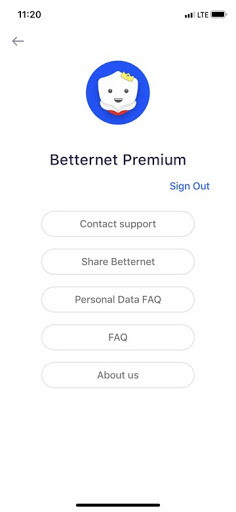
Your Premium features will now be enabled!
Let us know if you have any issues. You can reach us anytime!